Personal data in image captions and alt text: what to check
Personal data in image captions and alt text can stay after a crop or blur. Learn what to search, where labels appear, and how to clean them.
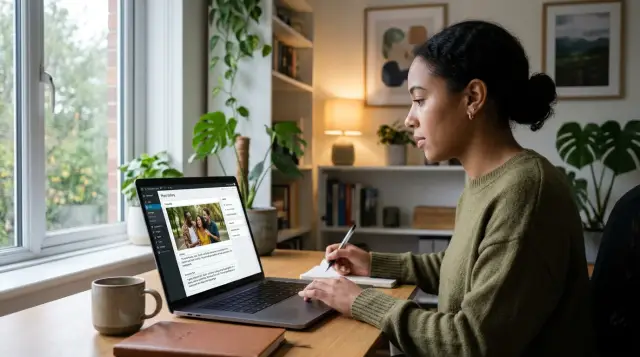
Why visible edits are not enough
Cropping, blurring, or covering part of a photo only changes the pixels. It does not automatically change the words attached to that image. That is why private details often stay online even after the photo looks "safe."
A common mistake is to blur a street number or a face and assume the problem is solved. The caption may still say "Emma Carter outside her home in Dayton," and the alt text may repeat the same detail. Search engines, screen readers, and site search can still read that text. If the words stay public, your information stays public.
On many sites, the image file, the caption, and the alt text are stored in separate fields. Someone updates the photo but forgets to update the text. It happens all the time on blogs, property listings, school pages, and old news posts.
That gap matters because text is easy to copy, index, and reuse. A name, town, apartment number, or workplace in a caption can reveal more than the image itself. Even if the visible part of the photo no longer shows your address, the words under it might still spell it out.
Alt text creates the same problem. It exists for accessibility, which is a good thing, but people rarely check it after making visual edits. If the old alt text says "John Miller in front of 18 Oak Street," the edit did not remove the personal detail. It only hid it from quick view.
There is one more catch. Old text can linger in search results after a page is updated. So even when you fix the caption or alt text today, a search snippet may still show the older version for a while. That is why a page can look clean while search still shows the name, town, or address.
Visible edits help, but they fix only one layer. To remove personal details from a photo page, you have to check the text around the image too.
Where hidden text usually sits
Most of the time, the problem is not inside the picture. It sits around it.
Captions are the first place to check. They are often written quickly and left untouched for years. A parent might post a school photo with "Mia Turner, Norwich" under it. Later, they crop the badge on the uniform, but the caption still gives away a full name and town.
Alt text is another common source of image alt text privacy issues. Instead of a simple description like "woman holding a dog," people sometimes write far too much, such as "Sarah Patel outside 18 King Street." The photo looks cleaned up, but the alt text still carries the address.
Filenames can also expose more than people expect. They are not always visible on the page, so they are easy to miss. If the original upload was called "jake-harrison-brighton-flat-12.jpg," that name may still appear in the page code, media library, attachment page, or search results even after the visible title is changed.
Gallery pages make this worse. One image can appear in several places at once: a main post, a thumbnail grid, a slideshow, and a preview card. Some systems reuse the same label in each version, so one careless caption can spread a name or location across multiple pages.
A simple example makes the risk obvious. Imagine you edit a real estate photo to hide the house number. The page may still include a caption with the street name, alt text with the full address, the original filename, and a thumbnail that repeats the same wording. The visible edit helps, but the private detail is still on the page in plain text.
If you want to remove personal data from photos, check every text field tied to the image, not just what people can see.
What to search for first
Start with the words a stranger would use to find you.
Your full name is the first thing to check, but do not stop there. Search nicknames, short forms, old surnames, middle names, and the casual versions friends or relatives use in posts. A label like "Jen at Oak Street" can be easier to find than "Jennifer Adams" if that is the name people use most.
Then move to place names. Towns, neighborhoods, apartment names, ZIP codes, building names, and school names can be surprisingly revealing. On their own, they may look harmless. Paired with a face, family photo, or event date, they narrow your location fast.
Address fragments matter even more. Search street names, house numbers, unit numbers, and local landmarks tied to your home. You do not need a full address for a privacy problem. "Maple Court 12B" in alt text is often enough to connect a person to a place.
Family names can expose more than one person at once. If an image label mentions "Emma and Noah Carter" or "Mia with Grandma Rosa," search those combinations too. Group labels often stay unchanged when someone edits only the visible photo.
Do one last pass for contact details hidden in plain sight. Email handles, phone numbers, and username-style labels often end up in captions because they were added for sharing, not privacy. Even a partial handle can lead back to a personal account.
A practical search order is:
- your full name and common short forms
- your town, neighborhood, or building name
- any street or unit details tied to you
- family names that appear together
- phone, email, or social handles
If you are checking a large batch of images, make a short note of every name and place variation before you search. It saves time and catches the versions people usually forget.
How to check your images step by step
Start with a small list of terms tied to you. Write down your name variations, town, neighborhood, street name, ZIP code, apartment number, and any family names that might appear in captions. If you skip this step, you will miss obvious matches later.
Now search each term on its own, then pair it with simple words like photo, image, gallery, profile picture, or album. Try combinations too. Search your surname with your town. Search your street name with image. Search your full name with gallery. Small wording changes matter.
When you open a result, slow down and read the page around the image. Check the caption under the photo, the nearby text, and any label that appears if the image fails to load or when you inspect the media settings. On many pages, that label is the alt text. Hidden personal data in images often survives there even after the visible photo was cropped or blurred.
Do not stop at one screen size. Some sites hide text on desktop and show it on mobile, or the other way around. A caption tucked into a collapsed section on a laptop may sit in plain view on a phone.
If you find something that should not be there, save proof right away. Take a screenshot that shows the page title, the image, and the exposed text. If possible, save one screenshot from desktop and one from mobile. That makes follow-up easier if the page changes later.
A simple routine works well: search, open, read, switch view, save proof. It is much faster than guessing where your information might be hiding.
A simple example
Say Maria posts a photo of the front of her house on a neighborhood page. Later, she notices the mailbox number is easy to read, so she crops the image and uploads the edited version. On screen, the risky part looks gone.
But the page still keeps the old text around the image. The caption says, "Maria Lopez at 18 Willow Street in Dayton after the garden cleanup." The alt text says, "Maria Lopez outside her home on Willow Street in Dayton." The photo looks cleaner, but the personal details are still there in words.
For privacy, that changes very little. Search engines and site search can read captions and alt text even when the visible part of the photo no longer shows the address. If someone searches "Maria Lopez" with "Willow Street" or "Dayton," the page can still appear.
This is why photo caption personal information is easy to miss. People check the picture first. They blur the mailbox, crop the sign, or cover the house number, then move on. Meanwhile, the caption still names the person, the town, and the street, and the alt text repeats it in one short sentence.
A better version keeps the meaning without giving away the address. The caption could become "After the weekend yard cleanup." The alt text could become "Person standing in front of a house." That still describes the image, but it no longer hands out a name and street to anyone searching for them.
If the page has been public for a while, check whether the same details appear elsewhere too. Image pages, copied listings, and people-search sites often reuse the same name and address.
Mistakes people make when cleaning image pages
The biggest mistake is fixing the picture and forgetting the page around it. Someone crops out a house number, blurs a face, or replaces the photo with a cleaner version, then assumes the job is done. The page can still expose the same details in the caption, alt text, filename, or old copies picked up by search engines and other sites.
Another common miss is alt text. Many people never see it on the live page, so they forget it exists. But it often includes names, towns, school names, or exact places because someone tried to describe the image clearly. If the visible caption is removed but the alt text still says "Sarah Jones in front of her home in Leeds," the page is still giving away too much.
Old filenames cause trouble too. Replacing emma-brown-boston-house.jpg with a newer image does not always remove the old label. Sometimes the new upload keeps the same filename. Sometimes the old file stays live in one version or another. Search results and cached copies can keep that label around longer than expected.
People also check one page and stop there. That is risky. The same image may appear in a gallery page, a blog post, a profile page, an attachment page, or on another site that copied it. Cleaning one page feels like progress, but your name or address may still sit on duplicate pages elsewhere.
Blur can create a false sense of safety. It helps, but it does not erase everything. A blurred photo can still show a school uniform, shop sign, building shape, or mailbox that gives away the location. Add a descriptive caption, and the guess becomes easy.
If you want a quick check, read the caption, alt text, title text, and filename as plain text. Search the page for your full name, town, street, and postcode. Then check whether the old image URL still loads and whether the same image appears on duplicate pages.
Quick checks before you repost
A blurred face or cropped sign can make a photo look safe when it is not. The text around the image often reveals the part you meant to hide.
Start with the caption. Read it like a stranger would. If it names a small town, school, street, building, or routine, trim it down. "Westfield" can become "my area." "Outside 18 Pine Street" can become "outside home."
Be strict with address details. Street names, house numbers, unit numbers, and building names rarely need to stay. Even a partial address can be enough when it sits next to a photo, a name, and a date.
The filename matters too. People often edit the image and forget that the upload still carries a name like "emma-newark-24-maple-apt2.jpg." Rename the file before you upload it again. A plain name such as "spring-photo-01.jpg" is much safer.
A fast repost check usually takes less than a minute:
- read the caption out loud and cut anything too exact
- check the alt text if the site lets you edit it
- replace exact towns with a broader area when that still works
- rename the file before the new upload
- ask one other person to scan the page
That last step helps more than people expect. You get used to your own details and stop seeing them. Someone else will often notice the small stuff, like a neighborhood name in a caption or a unit number tucked into a filename.
A good rule is simple: if the detail would help a stranger find you offline, remove it or make it less exact. Most image pages do not need that level of detail to make sense.
What to do if your data is already listed
If your name, town, street, or other personal details are already attached to a photo, move quickly but stay organized. A rushed message like "please delete this" often leads to a partial fix. The image gets replaced, while the caption, alt text, or file label stays live.
Start by making a clear record of what you found. Save a screenshot, the site name, the page title, and the date. Write down exactly which details were exposed, such as your full name in a caption or your town in alt text. Then note when you contacted the site and what you asked them to change.
When you write to the site owner or publisher, be specific. Ask them to update every place where the information appears: the image itself, the caption, the alt text, the filename or media label, and any page text that repeats the same detail. If the caption says "Anna Smith at 24 Oak Street" and the alt text repeats it, say both need to be removed. Site owners often fix only the visible part first.
After that, check again later. One week is a good start, then check again after another week or two. Copies can show up on archive pages, old blog mirrors, scraped directories, or search results that update slowly. Even if the original page is fixed, the same text can return somewhere else.
If the same details have spread to data broker sites, manual cleanup gets slow fast. In that kind of case, a service like Remove.dev can help by finding listings across data brokers, sending removal requests, and watching for re-listings over time. That does not replace fixing the original image page, but it can reduce the amount of repeated cleanup.
The main point is simple: treat the image and the surrounding text as one privacy problem. If you only edit what people can see, personal data in image captions and alt text can stay online long after the photo looks clean.
FAQ
Why isn't cropping or blurring enough?
Because editing the picture only changes the image. Names, towns, street details, and other private info can still sit in the caption, alt text, filename, or nearby page text, and search engines can still read that.
Where should I look besides the photo itself?
Start with the caption and alt text, then check the filename, image title, attachment page, gallery view, and any text near the photo. On many sites, those fields are separate, so one can stay public even after the image is updated.
What personal details should I search for first?
Search your full name first, then short forms, old surnames, town names, neighborhood names, street names, unit numbers, school names, and family name combinations. If a stranger could use the detail to find you, search it.
Can filenames really expose me?
Yes. A filename like jake-harrison-brighton-flat-12.jpg can expose a name and location even if the page title looks harmless. Rename the file before uploading, and check whether the old file still loads.
Does alt text need to be changed too?
It does. Alt text is meant to describe the image for accessibility, but people often write too much detail into it. If it includes your name, home, school, or workplace, edit it just like the caption.
Why do search results still show old details after I fix the page?
Search snippets and cached results can lag behind the page. The fix may be live on the site, but search can keep showing the older wording for days or weeks until it crawls the page again.
How can I check a page quickly?
Use a quick routine: search your terms, open the page, read the text around the image, check the alt text field if you can, switch to mobile view, and save a screenshot if you find anything. That catches most misses fast.
Should I test the page on both phone and desktop?
Yes, because some sites hide captions or labels on one screen size and show them on another. A page that looks clean on a laptop can still expose details on a phone.
What should I change before reposting a photo?
Trim the caption, remove exact place details, rewrite the alt text in a general way, and rename the file before upload. If the detail helps someone find you offline, make it broader or remove it.
What if my data is already spread across other sites?
Save proof first, then ask the site owner to remove the detail from every field, not just the photo itself. If the same info has spread to data brokers or keeps coming back, a service like Remove.dev can help find listings, send removal requests, and monitor for re-listings.