PDF still online after page removal: what to check
PDF still online after page removal often means the page was hidden but the file still has its own URL. Learn how to find copies and request full removal.
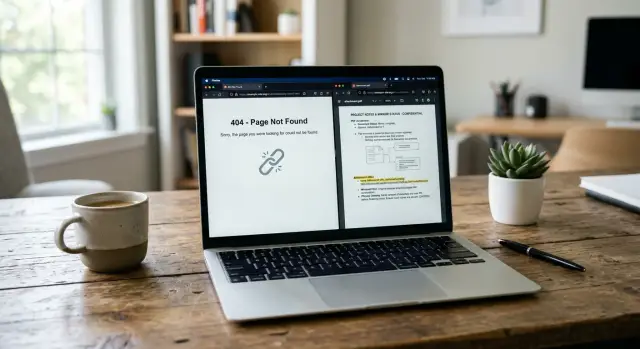
Why this happens in the first place
A web page and a PDF are usually two separate things.
The page is what you read in the browser. The PDF is often a separate file stored somewhere on the same site, with its own direct URL. When a site owner removes the page, they might only remove the doorway to the file, not the file itself.
That is why a page can disappear while the document stays online. If someone still has the direct file address, the PDF can open as if nothing changed.
A simple way to picture it: the page is the doorway, and the PDF is the item in the room. Closing the doorway does not remove the item.
This catches people all the time. They search their name, see the main page is gone, and assume the problem is solved. Then the PDF still appears in search results, browser history, or an old email, and anyone with the file URL can still open it.
That matters even more when the document contains personal data. A single PDF can expose a full name, home address, phone number, email, signature, or case details. If the file still opens, the data is still exposed, even if the page that linked to it is gone.
A lot of cleanups stop too early because removing the page feels like the whole job. It is not. Files, cached versions, and duplicate copies can stay public after the first fix.
If the page is gone but the PDF still opens, treat it as an incomplete removal.
Where the PDF may still be living
A missing page does not mean the file is gone. In many cases, the site owner deletes the article, profile, or download page, but the PDF still sits at its own web address and loads normally.
That direct file URL is often the first place to check. If the PDF was uploaded to a media folder, it may stay public even after the page that linked to it is removed. Anyone who finds the old address can still open or download it.
Some sites also create a separate attachment page when a file is uploaded. This is a basic page built around the file itself. The main page may be deleted, but the attachment page can stay live, and so can the PDF behind it.
Search engines make this more confusing. Even after a fix, results may still show an old file path for a while. Sometimes that is just a stale result. Sometimes it still leads to a live document. You have to click and test it.
The PDF can also survive in places the site owner forgot about, such as:
- an old uploads folder on the server
- a subdomain used for documents or downloads
- a copied file in a backup or archive folder
- a renamed version in a different directory
This happens a lot after site redesigns and migrations. Files get moved, copied, or mirrored, and one version is removed while another stays online.
A quick check helps. Search for the page title, the file name, and folder names like "uploads," "media," or "docs." If the page is gone but the PDF still opens from a direct address, the fix only covered part of the problem.
How attachment URLs keep files public
A common reason a PDF stays online after page removal is simple: the file has its own URL. Deleting the page that linked to it does not always delete the file.
Many content systems store PDFs in a separate uploads folder or document library. The moment the file is uploaded, it gets a direct address. Once that address exists, people can often open the file even if the main page disappears.
Two different addresses may exist at the same time:
- an attachment page, which is a normal page on the site with a title and a link to the document
- a raw file URL, which opens the PDF itself
These are separate. A site owner might delete the attachment page and think the problem is fixed. If the raw file URL still works, the document is still public.
The file name matters too. If the PDF was uploaded as something like court-record-jane-doe.pdf, that name often stays reachable after page edits, menu changes, or a page takedown. Old emails, saved messages, browser history, and search results can still point people to it.
Some systems make this worse by storing files in predictable folders, often sorted by year and month. Others create public file paths by default. Either way, the page and the file are not the same item.
A small example makes it clear. A school removes a staff page after a complaint. The page disappears, but the linked PDF schedule is still live in the uploads folder. Anyone with the old file address can still open it, and search engines may keep showing that file for a while.
If you are dealing with an attachment URL removal issue, test both addresses. If either one loads, the PDF is still exposed.
Why mirrored files make this harder
Sometimes the page is gone and the original file is gone too, but another copy still exists somewhere else.
Files get copied behind the scenes more often than people realize. A site may keep the same PDF on its main server, push it to a CDN for faster loading, store a copy on a staging site, or pass it to a partner system or archive. Remove one version and the others may keep working.
Some mirrors are deliberate. A company might share documents with partner sites, investor portals, public record tools, or archives. If the original site removes the page, those copies do not automatically disappear.
Other mirrors are accidental. Old backups sometimes end up in a public folder after a migration. A test domain may expose the same uploads directory as the live site. Even a file cache can keep a document reachable if someone has the right address.
Common places mirrored PDF files show up include:
- CDN or media delivery URLs
- staging or test domains
- partner or affiliate sites
- archive systems and public backups
- old folders left online after a redesign
Search results can make this look even messier. A result may still show the old title or preview text for a while, even after the original page is gone. That does not tell you much by itself. What matters is whether the result still leads to a live file.
The practical point is simple: removing one page is not the same as removing every copy of the document. If the PDF contains personal details, treat each live URL as its own problem until every one of them stops working.
How to check what is still public
The fastest way to test a partial fix is to stop focusing on the page and check the file itself.
Start with a plain search. Put the exact PDF title in quotes and see what appears. If the document had a clear file name, search that too. Sometimes the page result is gone, but the PDF still appears as a separate result.
Then test the old page URL and the direct PDF URL as two different things. The page may return an error while the file still downloads.
Use a private window when you check. That helps avoid false comfort from saved sessions, cached pages, or special access tied to your account. If the file opens there, it is public.
Also check whether the same file is available from more than one domain. It may load from the main site, a media subdomain, a document host, or an old mirror that copied the uploads folder.
When you find anything that still works, save proof right away:
- a screenshot of the result page or download screen
- the full file address
- the date and time you checked it
- whether you used a private window
- the domain that served the file
Keep all of that in one note before contacting the site owner. It saves time and makes follow-up easier if they claim they cannot reproduce the issue.
If the exposed details are also turning up on data broker sites, that is a separate problem from the original PDF. In those cases, a service like Remove.dev can help remove personal information from broker listings and keep watching for re-listings so the same details do not keep resurfacing.
A simple example of a partial fix
Picture a small clinic with a staff profile page that has been online for years. The page includes a short bio, a headshot, and a scanned PDF with licensing details and a signature. After a complaint, the clinic deletes the profile page from the main site.
At first glance, that looks like a full fix. The page is gone from the menu, and visitors cannot click to it from the staff directory.
But the PDF still opens if someone has the direct file address. It is sitting in the site's uploads folder, separate from the page that used to link to it. Search engines may still show that file in results, so someone searching the staff member's name can still find the document.
Now add one more problem. Years earlier, the clinic used an older subdomain for recruiting and internal updates. A copy of the same scanned PDF was uploaded there too. So the main page is gone, the uploads file is still live, and the old subdomain still has another copy.
That is what a partial fix usually looks like. One visible part is removed, but the document itself is still available in one or more places.
The real fix is straightforward in theory but often missed in practice. The clinic has to remove both files, not just the page, and then confirm that search results no longer lead to any live copy.
What to ask the site owner to remove
When a site removes the public page but leaves the PDF online, your request needs to be specific. A vague note like "please delete my document" often leads to the page being hidden while the file stays live.
Ask them to remove every version tied to that document: the page that mentioned it, the attachment page if the site creates one, and the raw file URL that points straight to the PDF. If the file name appears in search results, mention that too.
A short message works best. Include the exact URLs, the file name, and a screenshot showing that the PDF is still public.
It also helps to ask whether they checked for:
- mirrored copies on the same site
- cached or archived versions still served by their setup
- old subdomains that may host the same file
- duplicate uploads with slightly different names
One detail matters a lot: ask them to confirm once the file itself returns a proper removal or access error, such as "not found" or a blocked access response. If they only say "we removed the page," you still do not know whether the PDF is accessible.
Keep the tone plain and direct. Say that the page is down but the PDF still opens at the listed URL, and ask them to remove the page, the attachment record, and the file itself. Then ask them to confirm when the file no longer loads.
Mistakes that slow the cleanup
The most common mistake is stopping as soon as one search result disappears. That often means only the page was removed from search, not the PDF itself.
Another easy mistake is checking while logged in. Admins, staff, and account holders sometimes see a different version of the site than the public does. If you want to know whether the document is still exposed, test it in a private browser window or on a device that is not signed in.
People also miss copies on other domains. A file may be picked up by a partner site, a document archive, a subdomain, or a scraper that copied it earlier. Removing the original still matters, but it does not clean up those copies by itself.
Proof matters more than most people expect. If you find an exposed file, save evidence before it changes. That makes follow-up much easier, especially if support replies with "we can't reproduce this."
One more mistake is assuming the first fix will stick. Old files get re-uploaded, mirrored again, or re-indexed. Check after the site says the file is gone, then check again a few days later.
If the same personal details keep reappearing across broker sites, a tracked removal process helps. Remove.dev is built for that kind of repeat exposure, where data disappears from one listing and then pops up again elsewhere.
Quick checks before you move on
Before you close the case, spend a few minutes checking the obvious places where the file can still leak.
- Open the old page URL in a private window and confirm it no longer loads.
- Open the direct PDF URL and confirm the file does not preview or download.
- Search the file name, your name, and a unique phrase from the document.
- Check for copies on other domains, subdomains, or document hosts.
- Save screenshots, timestamps, and the exact URLs you tested.
Search results need a second look. A result can remain visible for a while even after the file is gone, but clicking it should not open the PDF. If it still leads to a live file, cleanup is not done.
Mirrors are easy to miss. A school site, public archive, media subdomain, or old staff portal may host the same PDF under a different path. One removed copy does not help much if another one is still open.
What to do next if copies keep coming back
If a PDF keeps reappearing after page removal, treat that as a repeat cleanup job, not a one-time fix.
Wait a few days, then search again. Some files come back after a site sync, a backup restore, or a delayed cache refresh. A PDF that looked gone on Monday can be public again by Thursday.
Keep a simple record with each domain or subdomain where the file appeared, the exact page URL and direct PDF URL, the date you found it, and the date you asked for removal. That makes it much easier to follow the trail when the same file shows up on a mirror, a partner site, or a second attachment URL with a slightly different name.
If the site owner removes the page but leaves the file live, go back with the direct file URL and ask for the file itself to be deleted from the server. If cached documents or search results still lead to it after that, ask for those copies to be cleared as well.
If they ignore the request, escalate. That may mean contacting the hosting company, the site's privacy contact, or using a formal data rights request where it applies.
This matters most when the file contains personal data like your phone number, home address, email, or full name. In that situation, you need every live copy gone, not just the main page. And if those same details are also circulating through data brokers, Remove.dev can handle the broker side by removing listings and monitoring for re-listings over time.
Stop only when the page, the direct PDF, and any mirrored copy are all gone. Anything less is just a quieter version of the same problem.
FAQ
Why is the PDF still online if the page is gone?
Because the page and the PDF are often separate items. A site can delete the page that linked to the document while the raw file URL still works, so anyone with that address can still open it.
How do I test whether the PDF is still public?
Check the old page URL and the direct PDF URL separately in a private window. Then search the exact file name, your name, and a unique phrase from the document to see whether any live copy still opens.
What is the difference between a page URL and a PDF URL?
The page URL is the normal web page people visit. The PDF URL points straight to the file itself, and that file can stay public even after the page is removed.
Could there be other copies of the same PDF?
Yes. The same document may still exist in an uploads folder, on an attachment page, a subdomain, a CDN, or an old backup path. Treat each working URL as a separate removal issue until every copy stops loading.
What should I ask the site owner to remove?
Send the exact URLs, the file name, and a screenshot showing the PDF still opens. Ask them to remove the page, any attachment page, and the file itself, then confirm that the file URL returns an error or blocked access response.
Do search results prove the file is still live?
No. A search result can stay visible after a file is gone, and sometimes it still leads to a live document. The only reliable check is to click and test whether the PDF actually opens.
Why should I use a private browser window?
A private window helps you see what the public sees. If you check while signed in, saved sessions or account access can make a hidden file look removed when it is still public to everyone else.
What proof should I save before contacting the site?
Save the full file address, a screenshot of the page or download screen, the date and time, and the domain that served the file. That record makes follow-up much easier if the site owner says they cannot reproduce the problem.
What if the PDF disappears and then comes back?
That usually means the file is being restored from a cache, backup, sync, or mirror. Keep a simple record of each URL and removal request, then follow up with the direct file address until every version stays down.
What if my personal details also show up on data broker sites?
That is a separate issue from the original PDF. You may need to remove the file from the site and also remove broker listings that copied the same details; a service like Remove.dev can help with the broker side and watch for re-listings.