Photo metadata location risks and how to stop them
Photo metadata location risks go beyond what a private profile shows. Learn how image files, map pins, and backups can expose your home.
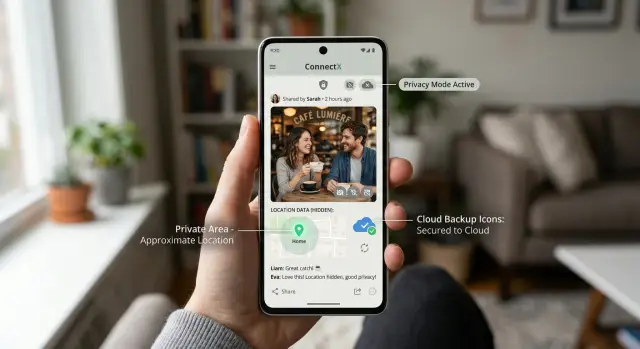
Why a private profile is not enough
A private profile can limit who sees your posts, but it does not control everything that happens to the photo itself. It does not remove hidden location details from the file, and it does not stop other people from saving or forwarding it.
What you see on screen is only one layer. A photo can carry background data such as GPS coordinates, the time it was taken, and the device used. Some apps remove part of that when they display a post, but the original file can still exist somewhere else, especially if someone downloads it, forwards it, or adds it to a shared album.
People are the other weak spot. Even trusted friends can save a photo to their phone, back it up to another service, or send it to a group chat without thinking much about it. Once the original file starts moving around, your privacy setting matters a lot less.
Photo apps can add their own clues too. They group pictures by place, suggest map pins, and connect a shot to home or work based on repeated patterns. You might never type your address anywhere, yet the app can still build a fairly clear picture of where you live.
One image might not reveal much. A few usually do.
A front garden in one post, a dog walk in another, and a school logo in the background of a third can be enough to narrow things down to a street, then a building, then one home.
A private post can still leak location in a few common ways:
- the original file keeps GPS data you do not see
- someone saves and reposts the full image
- a cloud backup keeps an older copy with geotags intact
- app-generated map views connect separate photos to one place
Privacy settings control access to a post. They do not control every copy of the file, every backup, or every clue around the image.
What a photo file can reveal
A photo is not just pixels. Many image files carry background data, often called EXIF. That hidden layer can tell a stranger more than the post itself.
The biggest risk is GPS data. If location saving was on when the photo was taken, the file may store exact latitude and longitude. A simple shot of your dog in the yard can point to your front door within a few meters.
Time data matters too. One harmless-looking photo can reveal when you are home, when you leave for work, when school pickup happens, or when the house is empty. Patterns matter more than single posts.
Device details add context. A file may include the phone model, camera brand, and sometimes the editing app. That can help someone connect photos across accounts or guess which person in a household took them.
File names can leak clues as well. Phones and apps often create names like "IMG_20250415_1830.jpg," and people sometimes rename files with labels like "new-house" or "mom-backyard." Album names can be just as revealing. If a photo came from an album called "Home" or "Cabin," that detail can travel with the file or show up in a backup.
Gallery apps and cloud backups can make this worse by placing photos on a map. Even when the visible post shows no address, the original file may still carry the place where it was taken or stored.
Before sharing an original image, check for GPS data, date and time, device details, and any file or album names that say more than you intended.
A simple example shows the risk. Someone sends a birthday photo from their kitchen to a small private group. The picture looks ordinary. The original file, though, includes location data, the exact time it was taken, and a file name tied to a home album. That turns a casual photo into a pretty detailed profile.
Other clues around the photo
A private account can hide your post from strangers, but it does not erase the clues around the image. The risk often comes from a mix of sources: the app, the backup copy, and the scene inside the frame.
Many photo apps quietly build a map from your pictures. If your phone saved location data when the shot was taken, the app can sort those images by place even when you never added a public check-in. Anyone with access to your account, shared library, or exported archive may see a clean timeline of where you live, work, and spend weekends.
Cloud backups add another layer. A social app might strip some details from the posted version while your backup service keeps the original file with full EXIF data. The safer-looking copy on your profile is often not the only copy that exists.
Deleting a post is not always a reset. If you shared the photo in an album, family group, or message thread, that copy may stay there after the main post is gone. Friends can also download the original and upload it somewhere else with the location still attached.
Then there is the image itself. A street sign in the corner, a school badge on a jacket, a bus stop name, or a skyline from your balcony can narrow things down fast. People usually underestimate how easy it is to match a church tower, mountain line, or apartment view with public maps.
Picture a sunset photo from your kitchen. The app stores it on a map, your cloud backup keeps the original file, and the window view shows a distinct building across the street. None of that seems serious on its own. Together, it can point straight to your block.
Before sharing, check more than the caption. Look at where the file is stored, whether the original is synced somewhere else, and what the background gives away.
A realistic example
Emma posts a photo of her dog in the backyard. Her account is private, and she only allows friends, cousins, and a few coworkers, so it feels safe.
The picture looks harmless. There is grass, part of a fence, and the corner of a patio table. No house number. No street sign. Nothing obvious.
What Emma misses is that the original image still has GPS coordinates from her phone. The app may hide that data in the post, but the file can still carry it if someone saves the original or if it ends up in another photo service.
A week later, Emma's aunt downloads the photo and adds it to a shared family album in a cloud backup app. That album has map view turned on. Now the photo is pinned to one spot on a map, close enough to show the home it came from.
That is already more than Emma meant to share. Then older photos make it worse.
Months earlier, she posted a few balcony shots at sunset. Those pictures showed the top of a nearby apartment building, a church tower in the distance, and the line of the street below. None of them named her address. Once someone has the map pin from the dog photo, though, those older images help confirm the exact building and even which side of it she lives on.
This kind of chain happens all the time because nobody involved feels careless. Emma shared a normal photo. Her aunt used a normal family album. The problem is that the location stayed attached much longer than Emma expected.
Nothing in the visible post looked risky. The risk came from the file, the map pin, and the trail of older photos around it.
How to check your photos step by step
A quick privacy check starts on your phone, not on social media. Pick one photo taken at home or near your regular route and inspect the file before you share anything.
Start with the original file
Open the image in your phone's photo app and tap the info panel. On most phones this is the "i" icon, "Info," or "Details."
Look for a location label or small map, the date and exact time, the device name or camera model, and any album names that suggest where the photo was stored. If you see a map, ask yourself a blunt question: would this pin place you at home, at work, or on a route you use often? Even a rough pin can narrow things down fast.
Compare the copy you actually send
This is the step people skip. Send the same photo to yourself in the exact way you usually share it, whether that is text, email, chat, a shared album, or an exported file.
Now open that copy and check its info panel too. Some apps remove EXIF location data. Some keep it. Some remove the map but leave the date, device details, or file name alone.
This small test tells you what really happens instead of what the app promises. Trust the copy you actually send, not the settings page.
Then check the places where photos leave your phone without much thought. Review backup apps, shared albums, cloud folders, and exported images saved for posting later. If one version has location data and another does not, you have found the weak spot.
How to remove location data before sharing
The safest fix starts before you post. If your camera saves GPS data when you take a photo, that information can travel with the file even when your profile is private.
Start with your phone settings, not the social app. If the camera does not have location access, new photos will not carry your home coordinates in the first place. That is much better than trying to clean every file later.
A simple routine works well. Turn off location for your camera before taking new photos. When sharing, look for a setting like "location," "metadata," or "include details" and switch it off. If the app keeps the original metadata, send an exported copy, screenshot, or edited version instead.
Then check the image itself. Hidden data is only part of the problem. House numbers, street signs, license plates, package labels, and views from a window can give away your location even after the geotags are gone.
Be careful with cloud albums and messaging apps too. Some services show a clean preview but still make the original file available to download. Others build map views from your photo library, which can expose patterns about where you live and when you were there. Before you share, check whether people will see only the image or the full file.
A practical habit is to keep two versions: the original in your private library and a stripped copy for sharing. Crop tighter if you need to. Blur a small part of the frame. A screenshot of an edited image is often the easiest option.
A photo of a new couch seems harmless. If the original file still has GPS data and the window shows a distinct intersection, you have shared more than a living room shot. Clean the file first, then give the image one last visual scan.
Mistakes that keep location data alive
The biggest mistake is thinking the visible post is the whole story. It usually is not. A photo can leave traces in the file itself, in old uploads, and in copies saved somewhere else.
That is why a private profile can still leak location even when your account looks locked down. Privacy settings decide who sees a post. They do not always strip the hidden details attached to the image.
A common misunderstanding is the screenshot myth. Screenshots often remove some metadata, but they do not remove every clue. If the original photo shows your street through a window, a parked car with a visible plate, a school sign, or your house number on a package, the screenshot keeps all of that. It can also keep map labels, time stamps, or visible folders if you capture the whole screen.
Another mistake is trusting the app to send a cleaned copy. Some apps compress photos and remove location data. Some do not. Some send a preview in chat, then keep the original available for download. Others preserve the original if you upload through desktop, cloud sync, or a shared album instead of the normal posting flow.
That is how the problem sticks around. You may post one version publicly while a different version with full location data sits in messages, shared folders, or auto-synced backups.
Deleting the post does not always solve it. The same image may still exist in a cloud backup, a family album, a chat attachment, a download someone saved earlier, or an old social media archive.
Older photos cause trouble for another reason. People clean current photos but forget the backlog. Pictures taken months or years ago may still carry home coordinates, especially shots taken in the driveway, backyard, or right outside the building. Posting them later can expose the same place even if you now use tighter privacy settings.
One small habit helps a lot: treat every image as a file first, not just a post.
Quick checks before you post
Most location leaks are boring, not clever. A photo gives away home through file data, a sign in the corner, or a pattern across several posts.
A private profile does not fix that. If the original image still carries location details, or if the same file sits in backups and shared albums, the post can reveal a lot more than it seems to.
A 60-second scan
Open the image details on your phone or computer and check whether a place name, map, or GPS coordinates appear. Then zoom in on the frame and look for house numbers, parking permits, school badges, delivery labels, and anything with your surname or street.
Next, check the background, not just the subject. A bus stop name, shop sign, landmark view, or angle from an upstairs window can narrow your street surprisingly fast. After that, think about your recent posts together. A dog walk at 7 a.m., a gym selfie after work, and a package photo at your door can reveal your routine even if each one seems harmless on its own.
Then ask one extra question: where else will this image go? Social apps might remove some data, but your cloud backup could still keep the original with its location attached. Shared albums, family chats, and synced folders often keep more than the final post shows.
This is where people miss the obvious. They check the caption, crop the front door, and forget the reflection in a car window or the school crest on a jacket. A simple birthday photo on the driveway can show the house number, the slope of the street, and the car you park there every night.
A good rule is simple: if the photo was taken at home, near your child's school, or along a route you use often, treat it as sensitive before you share it.
What to do next if your home address is already out there
Act fast, but keep it simple. You do not need a perfect cleanup on day one. First stop new leaks, then work backward through the old ones.
Start with the photos that make your home easy to find. Delete or replace posts that show your house number, street sign, mailbox, front door, parked car plate, or a map pin near your block. If the file still has location data, swap it for a cleaned copy instead of reposting the same image.
Then close the side doors. A leak often keeps going through cloud backups, shared albums, and apps that let other people save your media. Turn off location in your camera app, pause auto-upload if you do not need it, review shared albums, and limit who can download or forward your photos.
A practical order is to remove the most revealing photos first, check backup apps and shared albums for copied versions, ask friends or family to delete reposts that show your home, and review who can save or share your media.
After that, search for your address outside social media. Look up your full name, phone number, home address, and old usernames. Data broker sites often connect those details into one profile, which makes a photo-based clue much easier to confirm.
This is where cleanup gets frustrating. You remove one listing, and the same details show up again a few weeks later. If that keeps happening, a service like Remove.dev can help by finding and removing personal data from more than 500 data brokers and monitoring for relistings, so the same records do not quietly come back.
Do not forget backups
Many people delete a public post and think the problem is solved. It often is not. The same image may still sit in an old album, a synced phone backup, a shared family folder, or a cached profile archive.
Go one layer deeper than the visible post. If you clean the photo, lock down backups, and remove broker listings tied to your address, you cut off the easiest ways people connect a picture to your home.
FAQ
Is a private profile enough to hide my home location?
No. A private account limits who sees the post, but it does not control every copy of the file. If the original image keeps GPS data, or someone saves and reposts it, your home can still be exposed.
What photo metadata can reveal where I live?
The biggest risk is GPS coordinates stored in the photo file. Date and time, device details, file names, and album names can also give away where you were and help connect photos to one place.
Can one normal photo really reveal my address?
Sometimes, yes. One image with GPS data can point close to your front door, and even without geotags, a window view, school badge, street sign, or building in the background can narrow it down fast.
Do screenshots remove location data?
Often, but not always. A screenshot may drop some metadata, yet it still keeps whatever is visible in the frame, like a house number, street view, or delivery label.
How do I check if a photo has GPS data?
Open the original image in your phone's photo app and check the info or details panel. If you see a map, place name, coordinates, exact time, or device info, the file is telling you more than the post itself.
What is the safest way to share a photo taken at home?
Turn off location access for your camera before taking new photos. For anything already taken, share a cleaned copy, edited export, or screenshot, then do one last visual scan for signs, plates, labels, and views from your window.
Why are cloud backups and shared albums a problem?
Because they often keep the original file, they can preserve location data even if the app post looks clean. A family album, synced folder, or message attachment may still show map pins or let someone download the full image.
If I delete the post, is the risk gone?
Not always. Copies may still exist in chats, shared albums, downloads, backups, or old archives, so deleting the visible post is only part of the cleanup.
What should I look for in the photo itself before I post it?
Scan the edges and background, not just the subject. House numbers, school logos, parking permits, package labels, reflections, skylines, and repeated views from the same window can all point back to your home.
What should I do if my home address is already online?
Start by removing or replacing the most revealing photos and checking backups, shared folders, and chats for copies. Then search for your name, phone, and address on data broker sites; if that is too time-consuming, Remove.dev can help remove those records and watch for them to come back.