Redact screenshots for removal requests the right way
Learn how to redact screenshots for removal requests so you show enough proof, hide extra personal details, and avoid sharing new data by mistake.
Why screenshot proof can expose more than the listing
A screenshot feels harmless. You capture the page, attach it to your request, and move on. The problem is that a screenshot often shows more private data than the listing you want removed.
It captures the whole scene, not just the proof. A full browser window can reveal open tabs, bookmarks, profile icons, search terms, browser extensions, and other pages you visited a moment earlier. A full desktop capture can expose even more, including file names, work tools, and message alerts.
Most people notice the listing itself and miss the small details around it. The record might show your name and city, but the browser bar could show a search for your home address, a signed-in email account, or a profile photo. On a work computer, the image might reveal internal systems or account names. That is extra data you never meant to share.
Common leaks include:
- tab titles with email subjects or account names
- bookmarks for banking, shopping, school, or work pages
- the address bar with search queries or page paths
- pop-up notifications from messages, calendars, or apps
- parts of the desktop with other windows or files
Proof should stay narrow. A reviewer only needs enough to confirm that the listing exists and that it is about you. Anything beyond that can create a second privacy problem. In the worst case, the proof image gives a broker, support team, or outside processor fresh details they did not have before.
That is why it helps to think like an editor, not a pack rat. More evidence is not always better. Better evidence is clear, tight, and limited to what the reviewer needs.
The safest habit is simple: capture only the listing area when you can, and treat everything around it as suspicious until you check it.
What the reviewer needs to see
The goal is simple. Give the reviewer enough proof to confirm the listing without sending extra details about your life.
Most requests do not need a full-page capture. They need a clean snapshot that makes three things obvious: where the listing appears, what data is shown, and why the record matches you.
Start with the source. Keep the site name, page title, page header, or another label that makes the origin obvious. If a reviewer cannot tell where the screenshot came from, they may ask for another image and your request takes longer.
Next, keep the part that shows your data as it appears publicly. That might be your name, city, age range, old address, phone number, or relatives, depending on the page. The reviewer needs to see enough to confirm the match.
Context matters too. A crop that shows only one line of text can look incomplete. Leave a small amount of the surrounding page visible so the image still looks like a real listing, not a random text snippet. In most cases, one screen with the header, the listing block, and a bit of nearby page content is enough.
If a date appears naturally in the capture, it can help. But do not expose account details or device information just to prove when you took the screenshot.
A good rule is easy to remember: keep what proves the listing exists and belongs to you, and hide the rest.
What to keep visible
A proof image has one job. It should show that the listing exists and that it is about you.
Keep the source visible near the top of the image. That can be the site name, broker name, page title, or another label that makes the page easy to identify. Without it, the screenshot can look like a random cropped box.
Your name should stay visible exactly as the listing shows it. If the page uses a middle initial, a former last name, or even a misspelling, leave that version in place. Odd details like that often help connect your request to the record.
Keep the details that tie the listing to you, but only the ones that matter. Usually that means one or two matching points, such as your city and state, age range, a partial address, or a relative name if the page uses it to identify the record. You do not need every line on the page.
If the page includes a listing ID, result number, or profile label, leave it visible. Small labels like these can help support staff find the right page faster, especially on sites with many similar names.
A simple test works well here: can a stranger look at the image and say, "Yes, this is the right record," without learning more about you than they need to?
Cropping matters as much as redaction. If the proof sits in the middle of a long page, crop in close. Leave out sidebars, suggested people, ads, tabs, and anything below the fold that does not help your case.
When the screenshot is done right, it still makes sense on its own. It is clear, small, and easy to review.
What to blur before you send it
Hide anything the reviewer does not need.
Many people focus on the broker page and forget the rest of the screen. That is usually where the extra risk is. A clean image should prove the match without exposing fresh personal data.
Blur or block these parts first:
- other browser tabs, bookmarks, and toolbar items that show where else you go online
- profile photos, account menus, inbox previews, and app alerts at the edge of the screen
- address details that go beyond the match, such as an apartment number when the street and city are enough
- phone numbers or email addresses that appear outside the listing itself
- unrelated names, order numbers, notes, map pins, or saved form data anywhere on the screen
Think about what the reviewer actually needs. If the listing shows your full name, age range, and city, they probably do not need to see your signed-in browser profile, shopping bookmarks, or the subject line of a new email.
A common mistake is sending a full desktop screenshot. That can expose far more than the listing ever did. Even a tiny corner may reveal a work chat, a family name, or part of a receipt number. Crop first, then redact whatever remains.
If you are unsure, hide more of the unrelated screen, not less. Just do not cover the details that prove the record is yours.
How to redact a screenshot step by step
Start by capturing only the browser window that shows the listing. Skip the full desktop. For removal requests, the page itself is usually enough.
Before you edit anything, save a clean copy. Keep the original untouched in case someone asks for a clearer version later. Then make a second copy for editing.
Crop the image first. Trim away empty browser space, sidebars, ads, and anything outside the listing. This step removes a lot of risk before you even start redacting. If you redact before cropping, it is easier to miss small details near the edges.
Next, cover private details with a solid block or a strong blur. Light blur is risky. If letters or numbers still show through when you zoom in, the redaction failed. A solid box is often the safer choice because it leaves no room for guessing.
Keep only the parts a reviewer needs to match the record. That might be the site name, the listing title, and your name or city if those details prove the page is about you. Hide anything extra, such as a street address, phone number, email address, profile ID, or relative names, unless the request really needs that detail.
Then inspect the image closely. Check it at normal size, then zoom in. If you can still make out part of an email address or the last digits of a phone number, redo it. Small leaks are easy to miss.
A simple example helps. If a people-search page shows "Jane Miller, Austin, TX" along with a full address and age, keep the site name and the line that identifies the listing. Crop out the rest if you can. If not, place a solid block over the address and age.
When you save the final file, use a plain name like proof-1. Do not name it jane-miller-current-address. The screenshot should support your request, not reveal new data.
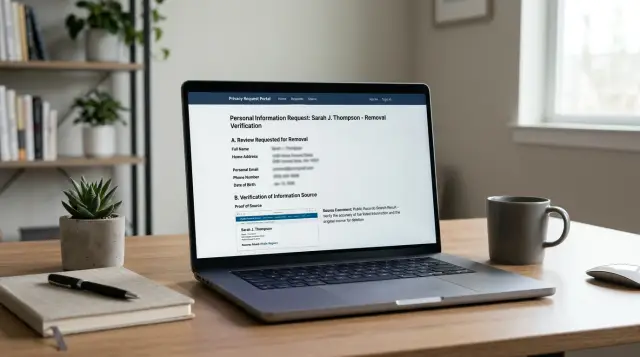
A simple example of a clean proof image
Picture a common case. You find your profile on a people-search site, and the page shows your name, city, and age range. That is enough to prove the listing is about you.
A good screenshot does not try to capture the whole site. It shows the part a reviewer needs to verify the page and nothing else.
In this example, the image keeps two things easy to see: the site name near the top and the profile section with the listed details. The reviewer can tell where the page came from and what information is exposed. That is enough proof for a removal request.
Everything around that can usually be trimmed or hidden. That often includes browser tabs, bookmark bar entries, sidebars, ads, suggested profiles, account icons, email previews, and anything else in the browser chrome.
The finished image is often smaller than people expect. It may show only the site logo, page title, and profile card with your name, city, and age range. If the listing also includes your full street address, phone number, or relatives, keep the part that proves the problem and hide unrelated details nearby.
One clean screenshot is better than five messy ones. A reviewer should not have to compare several files to figure out what page they are looking at. Tight, readable proof usually moves faster.
Mistakes that slow down a request
Requests usually stall for one of two reasons: the screenshot hides the proof, or it shows too much.
One common mistake is covering the exact detail that proves the listing is yours. That might be your full name, part of your address, your age range, or a profile thumbnail. If you hide every matching detail, the reviewer is left guessing.
The opposite problem happens just as often. People send screenshots with their browser profile, email address, or account name still visible in the corner. That adds fresh personal data to the request. Crop that area out or cover it completely.
Image quality causes trouble too. A small screenshot with fuzzy text is hard to review, even if the right details are technically there. This often happens when someone pastes the image into a document, saves it again, or sends it through a chat app that compresses it. The original screenshot file is usually the safest choice.
Another mistake is using a light marker or thin blur that still leaves text readable when someone zooms in. If the hidden text can still be guessed, it is not hidden. Use a solid block or a strong blur, then inspect the file yourself before you upload it.
Cropping can also go too far. If the screenshot shows only one line of text, the source may be impossible to identify. Keep enough of the page visible so the reviewer can tell which site or listing it came from.
A quick self-check helps:
- Can the reviewer see the listing source?
- Can they see the detail that connects the listing to you?
- Did you hide account details in the top bar or corners?
- Is the text readable at full size?
If the answer to any of those is no, fix the image before you send it.
A quick check before you upload
Right before you send the file, pause for 30 seconds. That last look often catches the detail that turns one privacy problem into two.
Open the edited image and look at it like a stranger would. Can you tell what site it came from and what should be removed within a few seconds? If not, tighten the crop or redo the redaction.
Then check for the usual leaks. Make sure the image does not reveal bookmarks, open tabs, profile photos, email addresses, account names, unrelated records, order numbers, map pins, or anything else that has nothing to do with your request.
Also check the file name. A name like john-smith-home-address.png gives away too much before anyone even opens the file. Rename it to something plain, such as broker-listing-1.png.
You do not need to send every screenshot you took. Extra files often create extra questions. In most cases, one clean overview and one tighter crop are enough.
What to do next
After you finish the screenshot, do one more round of basic file cleanup. Keep the original image and the redacted copy in separate folders, and label them clearly so you do not send the wrong file by mistake.
It also helps to keep a short record of each request. This does not need to be complicated. A simple note is enough if it includes the date, the site name, the page you captured, the file you attached, and whether the site replied. That makes follow-ups much easier.
If a site says the screenshot is too blurry or they need a wider view, send only what they asked for. Do not attach extra files "just in case." More proof often means more personal data leaves your hands.
If you are handling requests through Remove.dev, organized screenshots make each case easier to track in the dashboard. The service works on removals from over 500 data brokers and keeps monitoring for re-listings, so clear, tightly cropped proof helps each request stay focused.
One last habit is worth keeping: check again later. Some listings come back after removal, and some reappear on related sites with the same details. A clean screenshot helps with the first request. Good records help with every request after that.