Remove personal data from PDFs on document sharing sites
Learn how to remove personal data from PDFs on sharing sites, ask for edits or takedowns, and stop old files from showing up in search.
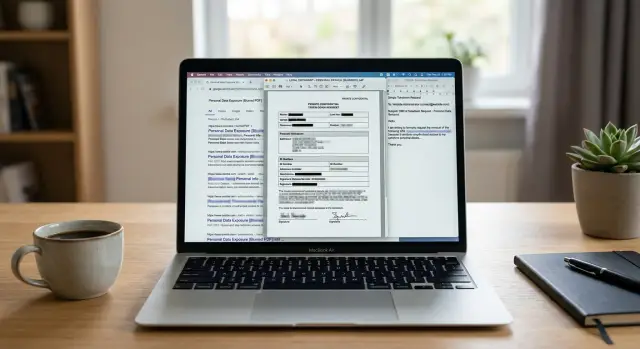
Why PDFs keep spreading
PDFs are easy to copy and hard to control. Once a file is posted, people can download it, email it, save it to cloud storage, or upload it again under a new name. One document can turn into several copies before you even notice.
A normal web page behaves differently. When the site owner edits the page, everyone sees the updated version. A PDF is more like a package that leaves the site and keeps moving on its own.
Search engines make this harder. After a PDF is removed or replaced, older versions can still show up in results for a while. Sometimes the result points to a cached copy. Sometimes it leads to a mirror site or document library that grabbed the file earlier. You fix one copy, and people still find another.
File names add more confusion. The same resume might appear as resume.pdf on one site, john-smith-cv.pdf on another, and final_resume_2021.pdf somewhere else. It is still the same personal data, just wrapped in slightly different packaging. That is why manual searching takes longer than most people expect.
There is another common problem. A site updates the page but forgets the attachment. A company may remove your phone number from a profile page and leave the old brochure, form, or directory PDF untouched. To a visitor, the page looks fixed. The private details are still inside the file.
A small example shows how fast this happens. A club posts a member list as a PDF. One person downloads it and emails it to a committee. Another uploads it to a shared folder. Later, the club edits its website, but the extra copies stay out there.
That is why cleaning up a PDF usually takes more than one edit. You are not dealing with one page. You are dealing with a file that can keep circulating long after the first upload.
What personal data to check first
Start with the details that identify you quickly. Do not stop at the main text. A PDF can expose the same information in the body, the file name, the metadata, and even the preview image on a document-sharing site.
Check the obvious items first: your full name, home address, phone number, and personal email. Add date of birth to that list, especially if it appears next to your city, school, or job history. Those details make it easy to match the document to your social accounts, public records, or old profiles.
Then look for the details people miss. Signatures, initials, handwritten notes, passport or license numbers, tax IDs, student numbers, and emergency contacts often slip through review. Resumes can be just as revealing. Even without a street address, an old resume may still expose your personal email, work timeline, graduation year, direct phone number, and signature. Put together, that is plenty for profiling or impersonation.
Do not skip other people's data. References, family details, and emergency contacts can appear in the same file. If you ask for an edit or removal, point those out too.
Metadata deserves its own check. Open the document properties and look for the author name, company name, old title, or software account used to create the file. A filename like "Jane-Smith-Resume-Final-2021" already gives away more than most people intend.
Also look at what the site shows around the PDF. Some platforms create screenshots, thumbnails, cached previews, or text snippets. Even after the file is replaced, the preview can still show your phone number or address for a while.
A simple rule works well: if a stranger could use a detail to contact you, verify you, impersonate you, or connect you to another record, flag it. That gives you a clear edit list before you ask for a replacement, takedown, or deindexing.
Find every copy, not just the first one
The first PDF you find is rarely the only one. Files spread fast once they have been indexed, scraped, or re-uploaded.
Start with the exact filename. Search it in quotes, including dashes, underscores, and version numbers. A search for "john-smith-resume-2021.pdf" can surface copies you would miss if you searched only your name.
Then broaden the search. Try your name with plain, specific terms such as "PDF", "resume", the site name, your city, your employer, or your school if those details appear in the document. Searching a unique phrase from the file often works even better than searching your name.
Do not stop at the blue title in search results. Read the snippet. It may expose your phone number, email, street address, or part of the PDF text even when the result looks harmless. Thumbnails matter too. The first page often contains the most sensitive details.
As you find matches, keep a small log. Save the full URL, the visible filename, and a screenshot of the result. If the page changes later, you still have proof of what was there.
It also helps to separate the results by type. One site may host the PDF, while other sites only show a preview, a directory page, or a search listing. Those are different problems. Removing the host copy often helps, but it does not always make the other pages disappear right away.
A simple spreadsheet is enough. Mark each result as "hosted file", "listing page", "preview only", or "duplicate". It sounds tedious, but it saves time when the same document appears under several slightly different URLs.
This stage is slow for a reason. Finding one file is easy. Finding the quiet copies that keep it alive after the first request is the part most people underestimate.
Ask for an edit or replacement
Start with the person who controls the file. That may be the original uploader, the site owner, or the support team for the document-sharing platform. If the PDF still has a real use and only part of it is the problem, ask for an edit or replacement before you ask for full removal.
Be specific. Name the file exactly as it appears. Include the page number and point to the line, footer, table, or image that exposes your information. A vague message like "my private info is in this PDF" creates extra work, and that usually slows the response.
If the document needs to stay online, ask for a redacted version. That means the file stays up, but the exposed details are removed. This is often the easiest route for reports, brochures, meeting packets, forms, or other files that still serve a public purpose.
Keep the request short and factual. You usually only need four things:
- the exact title or filename
- the page and detail that need to be removed
- a request for an updated or redacted copy
- a follow-up date if you do not hear back
Do not overexplain. Clear facts work better than a long story.
A typical example is an old resume on a document site. If page 1 still shows your phone number and street address, ask the site to replace the file with a version that keeps your work history but removes the contact details. That gives them a clear fix instead of an all-or-nothing demand.
If nobody replies, send one short reminder after a few days. Then check whether the file changed and keep copies of every message. If the site ignores you, move on to a takedown or deindexing request.
When to request a takedown or deindexing
Start with one question: should the file stay online at all? If the answer is no, ask for a takedown. If the bigger problem is that people can still find it through search, ask for deindexing. In many cases, you need both.
A takedown makes sense when the file itself should not be public. That includes PDFs with a home address, phone number, signature, passport scan, tax record, bank detail, or an old resume that shares more than you intended. In those cases, ask the site owner or host to remove the file entirely.
Deindexing is different. The file may still exist on the site, but you want search engines to stop showing it for your name, address, or other personal terms. This is often useful when the host is slow to act, or when the file sits on a site that few people visit directly but still ranks in search.
A simple rule helps:
- Ask for a takedown when the file itself is the problem.
- Ask for deindexing when search visibility is the main problem.
- Ask for both when the file is harmful and easy to find.
- If the PDF was updated, ask search engines to recrawl so older results drop faster.
Your request will be easier to process if it is precise. Name the PDF, identify the page, and explain what personal data appears in it. A short note like "This PDF contains my full home address and phone number, and I did not consent to public distribution" is far clearer than a general complaint.
If privacy law applies where you live, mention it. GDPR, CCPA, and similar rules can support a removal request. You do not need legal jargon. Plain facts are usually enough.
After the file is edited or removed, check again. Cached results, mirrored pages, and old snippets can stick around. Search your name, the PDF title, and a unique phrase from the document to make sure the problem is actually gone.
A simple example: an old resume online
Old resumes are one of the most common PDF problems. Someone searches their own name and finds a resume from ten years ago on a document-sharing site.
At first, the file looks harmless. Then they open it and see a personal phone number, an old email address, and their home city. That is enough for spam, scam calls, and unwanted profiling, even if the rest of the resume is outdated.
The first step is straightforward: contact the site and ask for the PDF to be removed or replaced. A short message works best. Name the file, explain that it contains personal information, and ask for confirmation when the change is made.
Sometimes that first request gets ignored. That is normal. Many sites are slow, and some support forms disappear into a queue.
So the next message should make the review easy. Include screenshots of the PDF, the search result, and the lines showing the phone number, email, or city. Clear evidence is harder to dismiss.
For follow-up, keep a simple record of the file title, the site name, the date of each request, screenshots of the listing and PDF, and any reply from the site. Once the site removes the file, take one more step and ask search engines to refresh or remove the cached result so people stop landing on an outdated copy.
That record pays off later. If the same resume appears on another site next month, you already have the screenshots, dates, and wording that worked before.
Mistakes that make removal harder
One mistake shows up again and again: asking Google or another search engine to remove the result before the PDF itself is gone. If the file is still live, the listing often comes back. Start with the host site, the uploader, or the site owner. Search cleanup works better after the file has been edited, replaced, blocked, or removed.
Vague requests also slow things down. "Please remove my document" is not enough when a site has thousands of files. Include the exact PDF title, the full page URL, the direct file URL if you can find it, and a short note about the personal data inside.
Another common mistake is stopping after the first copy. With PDFs, that is a bad bet. A resume, court filing, brochure, or old report can be mirrored on scraper sites, cached on other platforms, reposted by a different account, or saved under a slightly changed name. Assume there is more than one copy until you prove otherwise.
Easy misses
A site can update the web page and forget the file behind it. The page title may change, the preview may disappear, and your name may be removed from the description while the original PDF still downloads with the same private details inside. Always open the file itself and inspect the text, not just the page around it.
People also create a new problem while trying to fix the old one. They upload a replacement PDF but leave the phone number, birth date, home address, or email in the metadata or on page two. Then the new version spreads just like the first one.
Before you move on, do four quick checks:
- confirm the old file URL no longer loads
- confirm the revised PDF does not contain the same personal details
- search for filename variations on other sites
- ask for deindexing only after the live copy is handled
Those extra five minutes can save days of back and forth later.
Quick checks before you move on
A removal request is not finished when a site replies "done". PDFs often leave traces behind, and those traces can keep your details visible for days or weeks.
Start with the live page. Open the exact URL that used to host the file and see what a stranger would see. If the old PDF still downloads, or the preview still shows your name, phone number, or address, the job is not finished.
Then do a short follow-up review:
- open the page in a normal browser window and a private window
- search your full name, the PDF title, and any unusual phrase from the document
- check image previews and search snippets
- review your own cloud storage and shared folders
- save every confirmation email, ticket number, and date
Search results deserve their own check. If you sent a deindexing request or asked for a takedown, search engines may still show the old title or snippet for a while. When that happens, take a screenshot and keep it with your notes. It gives you a clear record of what was still visible and when.
This is also the right time to look for older uploads you may have forgotten about. Resumes, court filings, scanned forms, and school documents tend to spread quietly. Deleting one copy is rarely enough.
Keep a simple log with the URL, what changed, and the date. If the file comes back, you will know exactly where to start.
What to do if copies keep coming back
One request is often not the end of the job. PDFs get downloaded, re-uploaded, emailed, and indexed again, sometimes months later. Treat this as ongoing cleanup, not a one-time fix.
Watch two places most closely: document-sharing sites and search results. Search your name, phone number, email, street address, and any unusual phrase from the file. A unique line from an old resume often finds copies faster than your name alone.
When a file reappears, check whether the source is new or whether search engines simply picked up an old copy again. That detail matters. A new upload needs a fresh request to the site owner. An old deleted file may only need a search removal or deindexing request.
Some repeat leaks come from your own archived files. Before you share anything again, open every resume, form, cover letter, and attachment and strip out details you do not want copied later. Old versions cause a lot of trouble. One PDF attached to a job application years ago can keep resurfacing because someone reused the same file.
If the PDF came from an employer, school, club, or volunteer group, ask them to replace the public version, not just delete one page. A clean replacement works better than leaving the old file in a public folder with a new name beside it.
Keep one running log with where each copy appeared, when you sent the request, who replied, what action they took, and when it showed up again. It is simple, but it saves time and gives you proof if you need to follow up.
Sometimes the PDF is only one part of a bigger exposure. If the same phone number, address, or date of birth also shows up on people-search sites and data brokers, manual cleanup gets much harder. Remove.dev can help with that separate step by finding and removing personal information from over 500 data brokers and monitoring for relistings after removal.
The goal is practical: fewer exposed files, fewer public listings, and a clean version ready for future sharing.